

Your wired keyboard and mouse are probably fine. They work. They do the job. But if you have ever knocked a coffee cup sideways chasing a tangled cord, or felt the cable snap tight mid-reach, or looked at your desk and wondered how it got this cluttered, you already know something needs to change. Going wireless is the single cheapest upgrade you can make to a home office. It costs less than a dinner out and the difference shows up the moment you sit down.
The Logitech MK270 is the best-selling wireless keyboard and mouse combo on Amazon for a reason. Over 118,000 reviews, 4.5 stars, and a price that puts it within reach of any home office budget. Here are 10 concrete reasons it belongs on your desk.
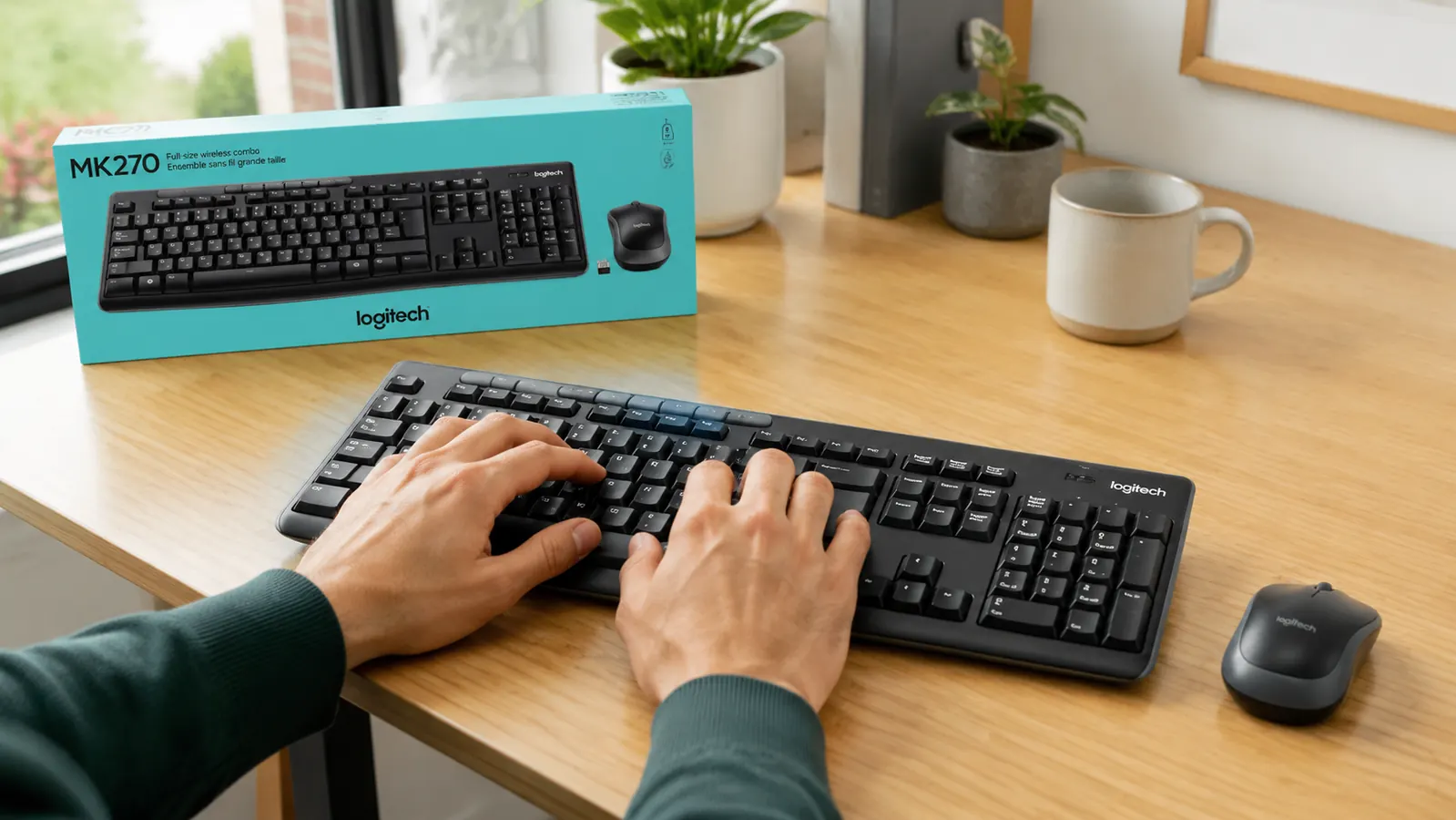
Your desk looks cleaner without a single input cable in sight. The MK270 proves it costs almost nothing to get there.
The Logitech MK270 wireless keyboard and mouse combo connects over 2.4 GHz with one tiny USB nano receiver. No Bluetooth pairing headaches. No cable drag. Just plug and type.
Amazon Check Today's Price on Amazon →You Remove Every Cable from Your Input Devices in One Move
Most home office desks have at least five cables running across the surface. Keyboard and mouse cables are two of the most annoying because you push them out of the way constantly. The MK270 cuts both with one USB nano receiver the size of a thumbnail. Plug it into any open USB-A port, set down the keyboard and mouse, and those cables are just gone. Not managed, not tucked. Gone. Your desk surface opens up immediately.
You Can Place the Keyboard and Mouse Anywhere Within 33 Feet
The MK270 has a 33-foot wireless range. In practice, that means your mouse works whether you put it on the right side of the desk, the left, or on a separate rolling side table. If you use a monitor arm and push your screen far back from your body, the keyboard and mouse move with you. No cable length setting a hard stop on where your hands can go.
Battery Life Is Long Enough That You Basically Forget About It
The keyboard runs on two AA batteries and Logitech rates it at 24 months of typical use. The mouse runs 12 months on one AA. Real-world use varies by how heavily you type and click, but most owners report going well over a year on the keyboard before swapping batteries. You are not charging this combo every night. You are replacing a AA once a year and moving on.
Setup Takes Under Two Minutes from Opening the Box
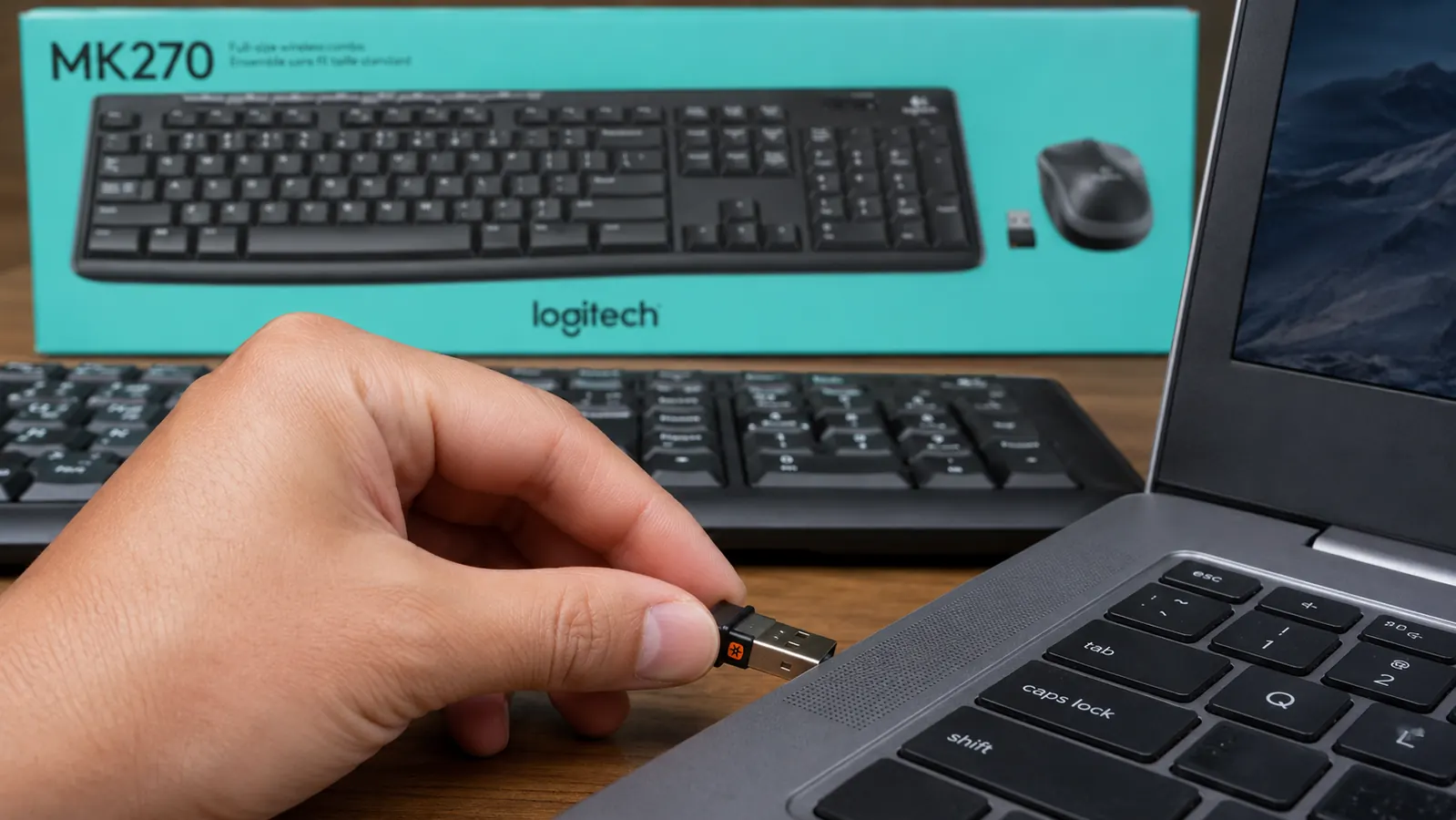
Pull out the keyboard and mouse, insert the batteries that come included in the box, plug the nano receiver into a USB-A port, and you are done. No software to download. No pairing sequence to fumble through. No driver installation. The receiver ships pre-paired to both devices from the factory. If you are setting up a new desk or replacing a combo that died, you are back to work in minutes.
The No-Numpad Layout Clears Up Real Estate on a Small Desk
The MK270 keyboard does not include a number pad. For most remote workers, that is not a loss. It is the point. A tenkeyless layout takes up roughly 30% less horizontal space than a full-size board. Your mouse sits closer to center. Your notebook, phone stand, and water glass all get a bit more room. If you work at a smaller desk and have ever felt crowded, a compact layout fixes that on day one.
Over 118,000 people have reviewed the Logitech MK270 on Amazon. It is the kind of buy that makes you wonder why you waited.
Eight Dedicated Hotkeys Handle the Tasks You Repeat All Day
The top row of the MK270 maps eight function keys to media and shortcut actions: volume up, volume down, mute, play/pause, previous track, next track, and two app-launch keys you can assign. If your workday involves video calls, background music, and constant browser tab switching, those keys save you several mouse clicks per hour. Muting yourself mid-call takes one tap instead of a frantic mouse hunt.
The Mouse Is a Real Right-Hand Shape That Holds Up Through a Full Workday
Compact wireless mice often use a flat ambidextrous shell that feels adequate for light use and tiring by hour three. The MK270 mouse has a proper right-hand contoured body with textured side grips. It does not have adjustable DPI or extra buttons, but for email, spreadsheets, documents, and video calls, the ergonomic shape holds up through eight hours without your hand protesting.

One Receiver Connects Both Devices and Uses Only One USB Port
Many wireless keyboards and mice are sold separately, each with its own receiver and each consuming a USB-A port. The MK270 is a true combo: one nano receiver handles both the keyboard and the mouse. If your laptop or docking station has a limited number of USB-A ports, this is a real advantage. You give up one port and both input devices go wireless.
It Works on Windows Out of the Box Without Any Software
The MK270 is built for Windows and runs natively on Windows 10 and Windows 11. The eight hotkeys work immediately with no software install required. Mac users can use the keyboard as a standard input device, but the hotkey labels will not line up with macOS shortcuts. For a Windows-based home office, this is a true plug-and-go experience from the first day.
At Under $30, the Upgrade Costs Less Than a Frustrating Half-Day of Cable Untangling
Wireless peripherals used to cost a premium. The MK270 sits well under $30 at today's price, which puts it squarely in impulse-buy territory for any home office upgrade. You are getting a full keyboard, a contoured mouse, a nano receiver, and batteries from one of the two or three brands with a genuine track record in this space. For the cost of a couple of lunches, your desk loses two cables and gains a noticeably calmer layout.
What I Would Skip
If you are a graphic designer, video editor, or anyone who depends on precision cursor control for pixel-level tasks, the MK270 mouse is not the right tool. The optical sensor handles standard office work well but it is not a high-DPI creative mouse. A dedicated wireless mouse with adjustable sensitivity is worth the extra spend if your work demands it. On the keyboard side, Mac users will find the hotkey layout slightly mismatched with macOS conventions. For Mac-first home offices, it is worth comparing against the Logitech MK295 silent combo before deciding.
The MK270 is not the best wireless keyboard and mouse combo you can buy. It is the best one at this price, for this use case, from a brand that has been doing this for decades.
If you want a longer look at how the MK270 holds up after two years of daily home office use, the full Logitech MK270 long-term review covers key travel feel, mouse fatigue over time, real battery life numbers, and one design change I would have made.
Two cables gone. One $30 move. That is the entire upgrade.
The Logitech MK270 wireless keyboard and mouse combo is in stock on Amazon now. Batteries included. Ships pre-paired and ready to use from day one. Check today's price before it moves.
Amazon Check Today's Price on Amazon →