
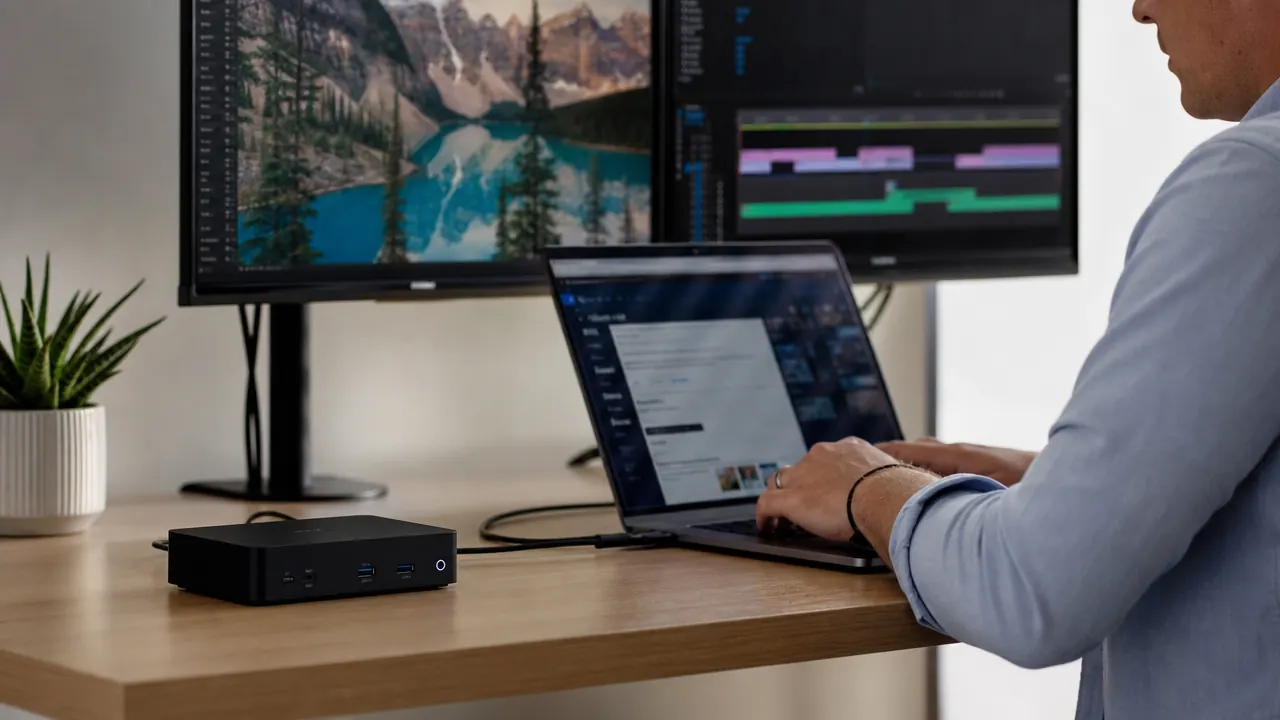
My work laptop has two USB-C ports and one headphone jack. That is it. No HDMI, no USB-A, no SD slot. For a year I solved this with a backpack full of dongles: one for the monitors, one for the ethernet cable, a separate charging brick, a USB hub for the keyboard and webcam. Every morning I plugged in six separate things. Every evening I unplugged them all. Last February I got tired of it and ordered the Selore 14-in-1 USB-C docking station. It cost about $53. Six months later I have run it eight to ten hours a day, five days a week, through two monitor upgrades and one operating system update, and I still have it on my desk.
This is a long-term review, not a first-impression unboxing. I will tell you how it performed over time, where it got warm, what worked every single day without a second thought, and what I would change if I could. If you want a straight head-to-head against a competitor, my comparison of the Selore versus the Anker USB-C hub covers that territory.
The Quick Verdict
A genuinely capable docking station at a price that is hard to argue with. The dual 4K HDMI output is the real selling point. The only real knock is that it runs warm under a heavy load, and the 85W passthrough charging slows a bit when all ports are occupied.
Amazon Check Today's Price →Still fighting with six dongles every morning? One cable fixes that.
The Selore 14-in-1 USB-C docking station adds dual 4K HDMI, Gigabit ethernet, USB-A, 85W charging, and ten other ports through a single cable. Check today's price on Amazon.
Amazon Check Today's Price on Amazon →How I Have Used It
My setup is a 2022 MacBook Pro 14-inch connected to two 27-inch 4K monitors, a USB-A mechanical keyboard, a USB-A webcam, wired ethernet from a router about 12 feet away, and a phone charging on the USB-C passthrough port. The Selore handles all of it through one USB-C cable into the laptop. That is the only cable I touch when I sit down.
For the first two months I was paranoid. I kept expecting something to drop out, a monitor to flicker, ethernet to disconnect during a video call. It did not. I stopped thinking about it by the end of month two. By month four I had completely forgotten what the dongle routine felt like. That is probably the most honest thing I can say: after six months, the dock has become as invisible as the desk itself.
The one day it was not invisible was in July when the room temperature climbed above 85 degrees with the window closed. The dock got noticeably warm on top, not hot enough to worry about but warm enough to notice if I picked it up. I moved it to the edge of the desk where air could circulate underneath and the temperature dropped back to the barely-warm range it stays in the rest of the year.
What the 14 Ports Actually Give You
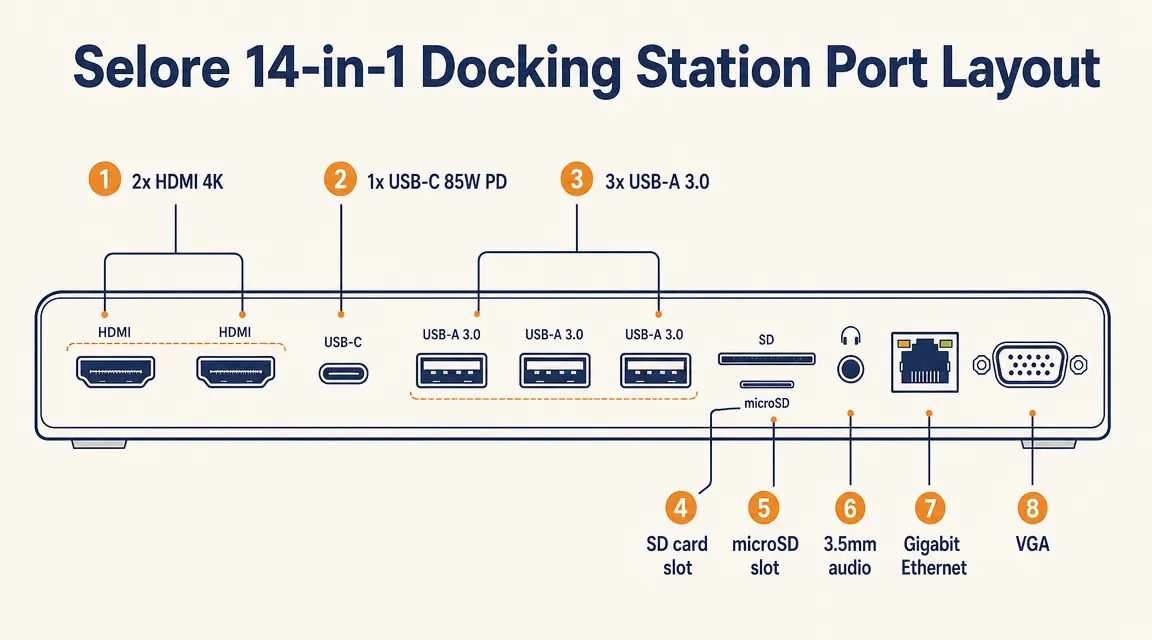
The port list sounds impressive on paper but a few things are worth understanding before you buy. The dock has two HDMI 2.0 ports, each capable of 4K at 60Hz. It also has one USB-C port for 85W power delivery to the laptop, three USB-A 3.0 ports, one USB-A 2.0 port, a Gigabit ethernet port, a full-size SD card slot, a microSD slot, a 3.5mm audio jack, and a USB-C data port. That is where the 14 comes from.
In practice I use eight of those fourteen ports every day. The other six are available if I need them. The SD card slot has saved me multiple times when pulling footage from a camera. The audio jack is useful when my headphones are not Bluetooth. The ethernet has been rock solid at gigabit speeds, which is a meaningful upgrade over the Wi-Fi performance on the same desk. If you want a deep breakdown of which ports matter most for your specific setup, the guide on how to connect dual monitors to a laptop using a docking station walks through the configuration logic in detail.
Dual 4K Monitor Performance Over 6 Months
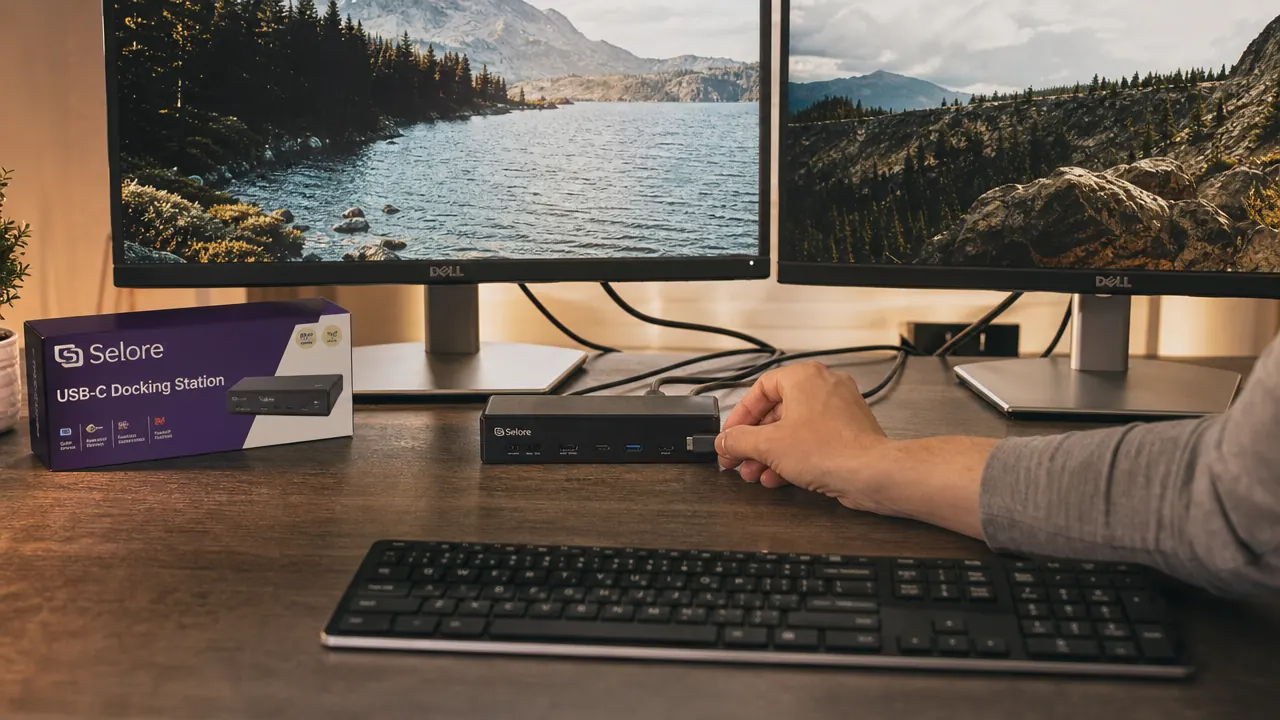
This is the reason most people buy a dock like this, so let me be specific. Both monitors ran at their native 4K resolution at 60Hz from day one. I did not need to install any drivers on the Mac. On Windows 11 with a work laptop I borrowed for a week, the setup required one trip into display settings to set both outputs to 60Hz instead of the default 30Hz, but after that it was fine.
Over six months I have had zero total dropouts on either display while sitting still. I have had three brief flickers during the six-month period, all of which I traced to the USB-C cable between the dock and the laptop shifting slightly in the port, not the dock itself. Tightening the connection fixed it each time. If your laptop USB-C port is loose or worn, that will be your weak link, not the Selore.
Color accuracy on both monitors looks identical whether they are plugged directly into the laptop or running through the dock. I do photo editing occasionally and I have not been able to spot a difference in the output.
Six months in, the dock has become as invisible as the desk. That is the highest compliment I can give a piece of peripheral hardware: it just works, every day, without drama.
The Heat Question
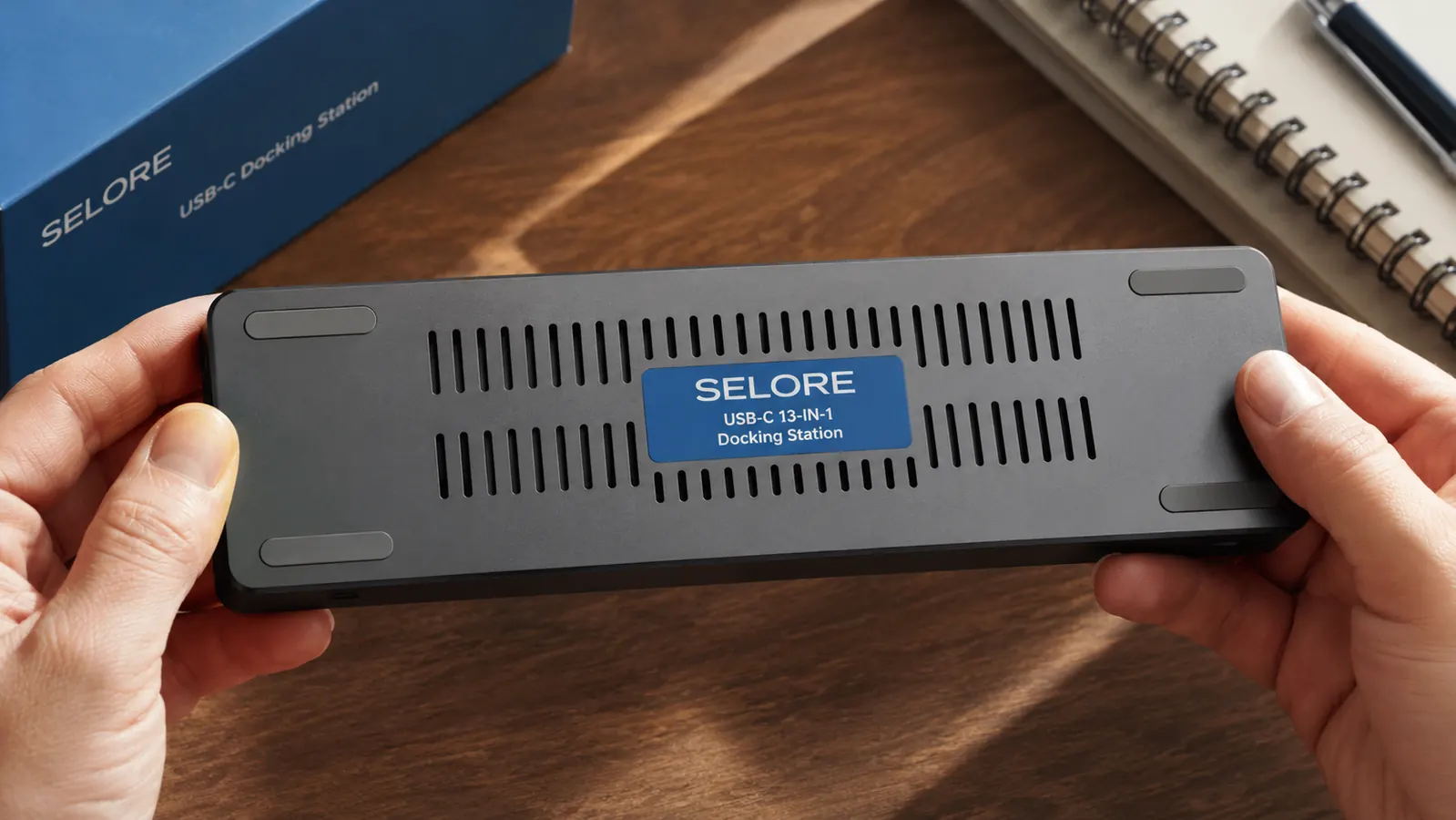
Every docking station that pushes dual 4K output, gigabit ethernet, and 85W charging through a single chip is going to generate heat. The Selore is no exception. Under a typical load, the top surface of the unit runs warm to the touch, maybe 40 to 45 degrees Celsius based on an informal measurement with an infrared thermometer I had on the desk. That is warm but well within safe operating range.
The ventilation slots on the underside are where most of the heat escapes, which means you should not stack anything on top of the dock and should avoid placing it flat against a surface with no airflow underneath. I prop mine on a small foam square from a packing box to keep half an inch of clearance. In six months of daily use I have not seen any signs of thermal throttling on either the monitors or the charging speed under normal room temperatures.
The one honest caveat: when I had every single port occupied during a particularly heavy afternoon, charging slowed from its rated 85W down to around 60W as measured by a USB-C power meter. That is enough to maintain charge during use for most laptops but it will not charge a 16-inch MacBook Pro at full speed with everything else running. Worth knowing if your laptop has an especially large battery.

Build Quality and Desk Presence
The Selore is a matte black rectangle that measures about 5.5 inches long, 2 inches wide, and 0.8 inches tall. It is light enough that I sometimes accidentally drag it when pulling the USB-C cable. That is a minor annoyance. The port openings feel solid with no wobble. The USB-A ports have a satisfying resistance when you plug something in, which signals they are not cheap hollow slots.
After six months the matte surface has picked up some light scratches from being handled, but nothing that is visible unless you hold it under a light at an angle. The cable that attaches the dock to the laptop is about 10 inches long and braided, which has held up with zero fraying. The connection to the dock is fixed, meaning you cannot swap out the cable if it eventually wears out. That is a downside worth noting for very long-term planning.
What I Liked
- True dual 4K 60Hz output worked reliably every day across 6 months
- Gigabit ethernet has been consistently faster than Wi-Fi at the same desk
- Single-cable connection to the laptop means a clean, fast desk setup routine
- Fourteen ports cover nearly every peripheral need in one unit
- At around $53, the price-per-port ratio is genuinely hard to beat
- No driver installation needed on Mac; Windows took one settings tweak
Where It Falls Short
- Runs noticeably warm under a full load, requires airflow underneath
- 85W charging drops closer to 60W when all ports are occupied simultaneously
- The attached cable cannot be replaced if it eventually wears out
- Light unit slides on the desk when you pull the upstream USB-C cable
- USB 2.0 port mixed in with the USB 3.0 ports can cause confusion if you need fast data transfer
Who This Is For
The Selore is a strong buy if you have a modern laptop with a USB-C or Thunderbolt port and you want to connect two monitors without spending over a hundred dollars. It is especially good if you are building a home office from scratch and want one piece of hardware that handles everything: displays, keyboard, mouse, wired internet, and phone charging through a single cable. If you are looking for more reasons why a docking station transforms a home office setup, there is a full breakdown in the piece on 10 reasons a USB-C docking station cleans up your home office.
It also works well for anyone who moves between home and an office or co-working space. The dock stays plugged in at the desk and you carry only the laptop. Setup is literally a single cable. That convenience is worth more than the $53 price tag if you are doing it daily.
Who Should Skip It
Skip the Selore if your primary laptop is a gaming machine or a 16-inch MacBook Pro that needs full 96W or 140W charging to keep pace with the GPU load. The 85W ceiling (and the real-world throttle to around 60W under full load) will leave you losing battery during intensive work. For those use cases, a Thunderbolt 4 dock with dedicated power delivery is the right answer, even though it costs considerably more.
Also skip it if your desk runs hot year-round and does not have good airflow. A dock that gets warm in normal conditions will get hotter in a poorly ventilated space, and sustained heat is not good for any electronics long-term. The Selore needs a little breathing room to do its job well. If you are unsure whether this dock or a more expensive hub makes sense for your specific setup, my comparison between the Selore and the Anker hub breaks down which situations favor each.
One cable, two monitors, everything connected. That is what the Selore does.
After six months and thousands of hours of use, this is still on my desk. At around $53 it is one of the most practical upgrades in any home office. Check today's price on Amazon before it moves.
Amazon Check Today's Price on Amazon →